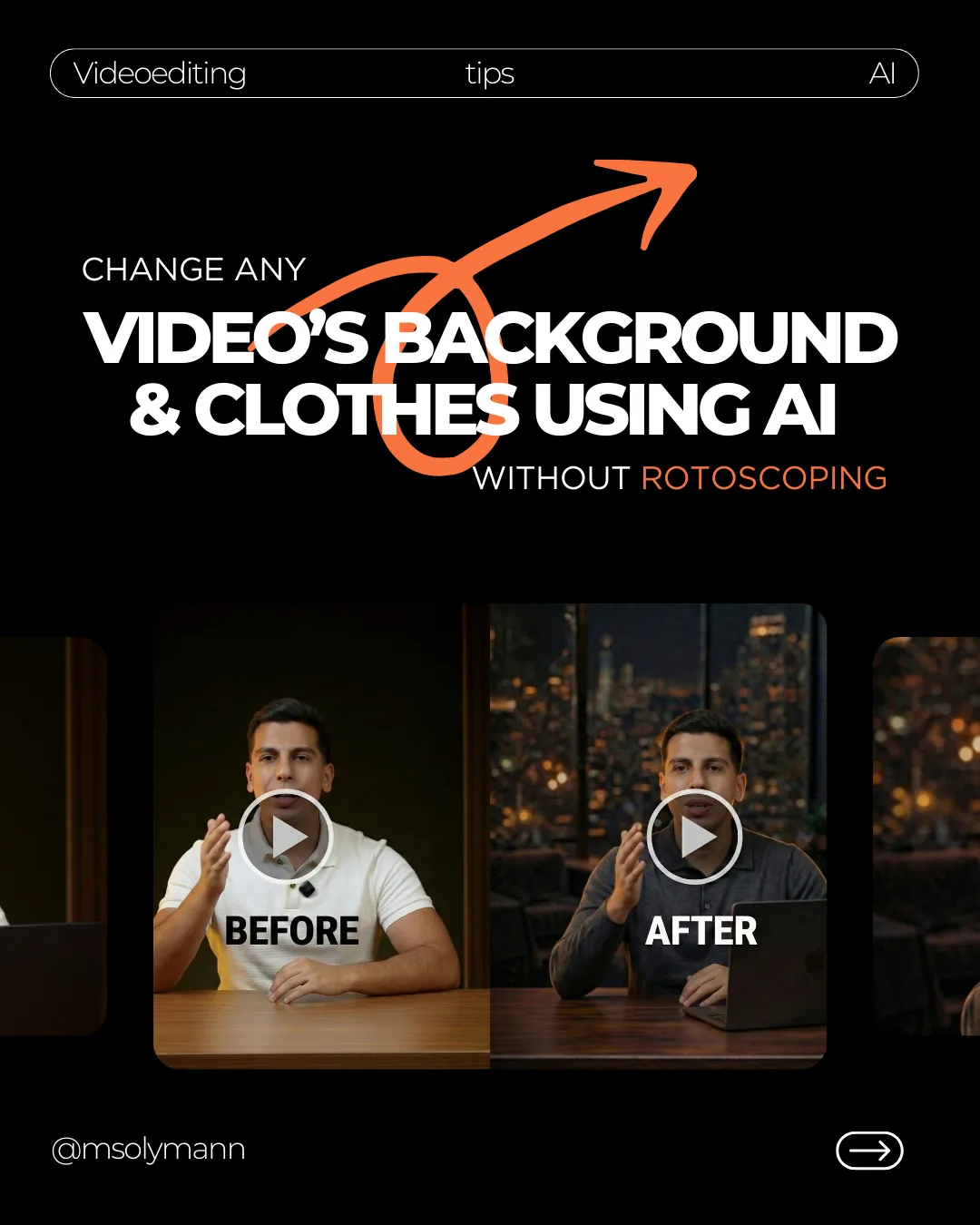
This is not a replacement for editing. It is a faster way to create the new look first, then use video tools to keep the original motion and face believable.
Extract the first frame.
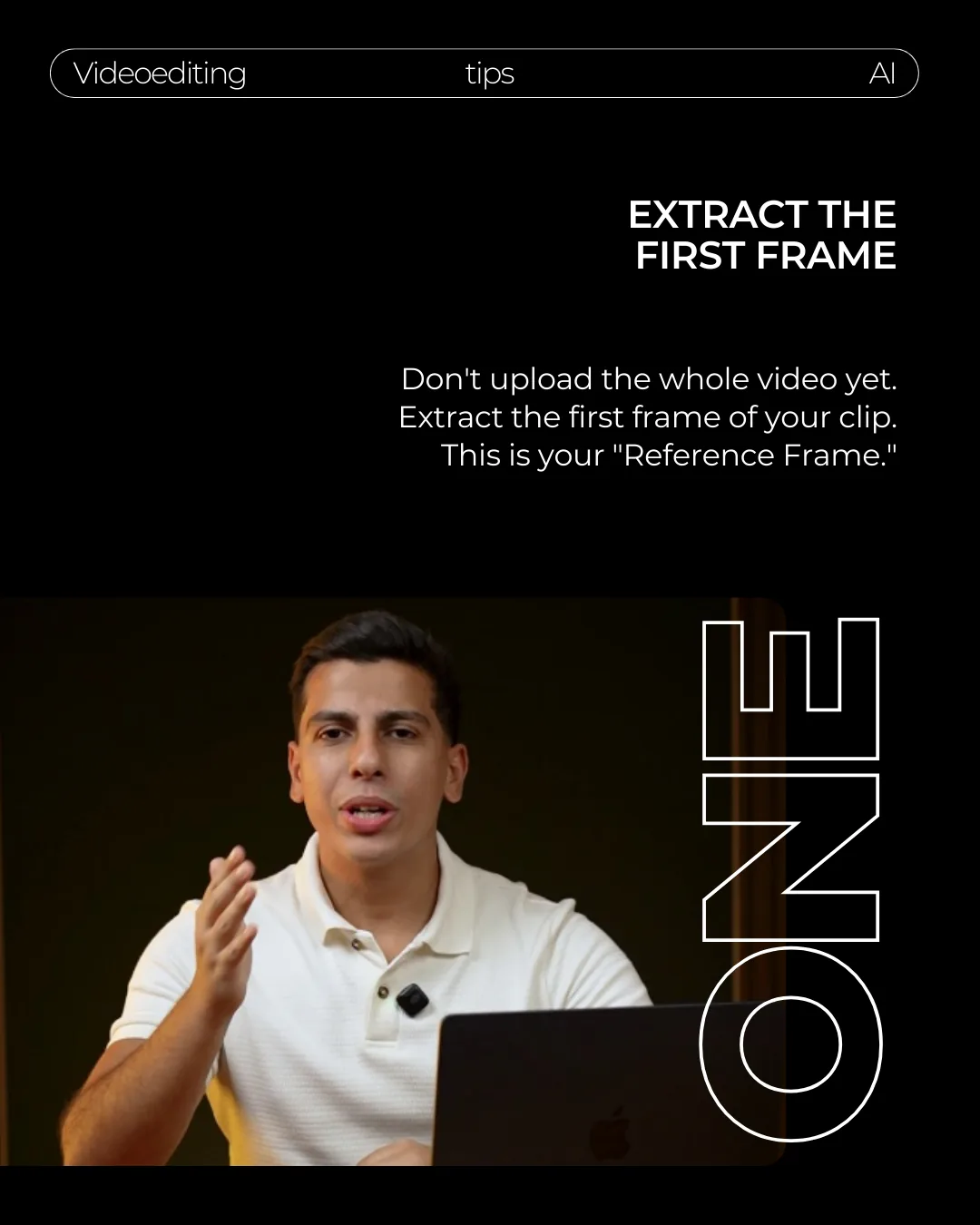
Start by extracting the first frame of your video. This is your reference frame, so choose a moment where the face, clothes, and body pose are clear.
Do not upload the full video yet. The carousel method starts with one still image, then brings the motion back later.
Change the background and outfit in one image first.
Upload the frame to Nanobanana Pro. Prompt the exact clothes and background you want while telling the AI what must stay the same: face, pose, framing, hands, and camera angle.
Prompt structure
Keep the same person, face, pose, camera angle, hands, and framing from this reference frame.

Change the background to: [describe the new location, lighting, and mood].
Change the clothes to: [describe the new outfit, fabric, color, and style].

Do not change the face identity, expression, mouth shape, hand gesture, body pose, or camera framing.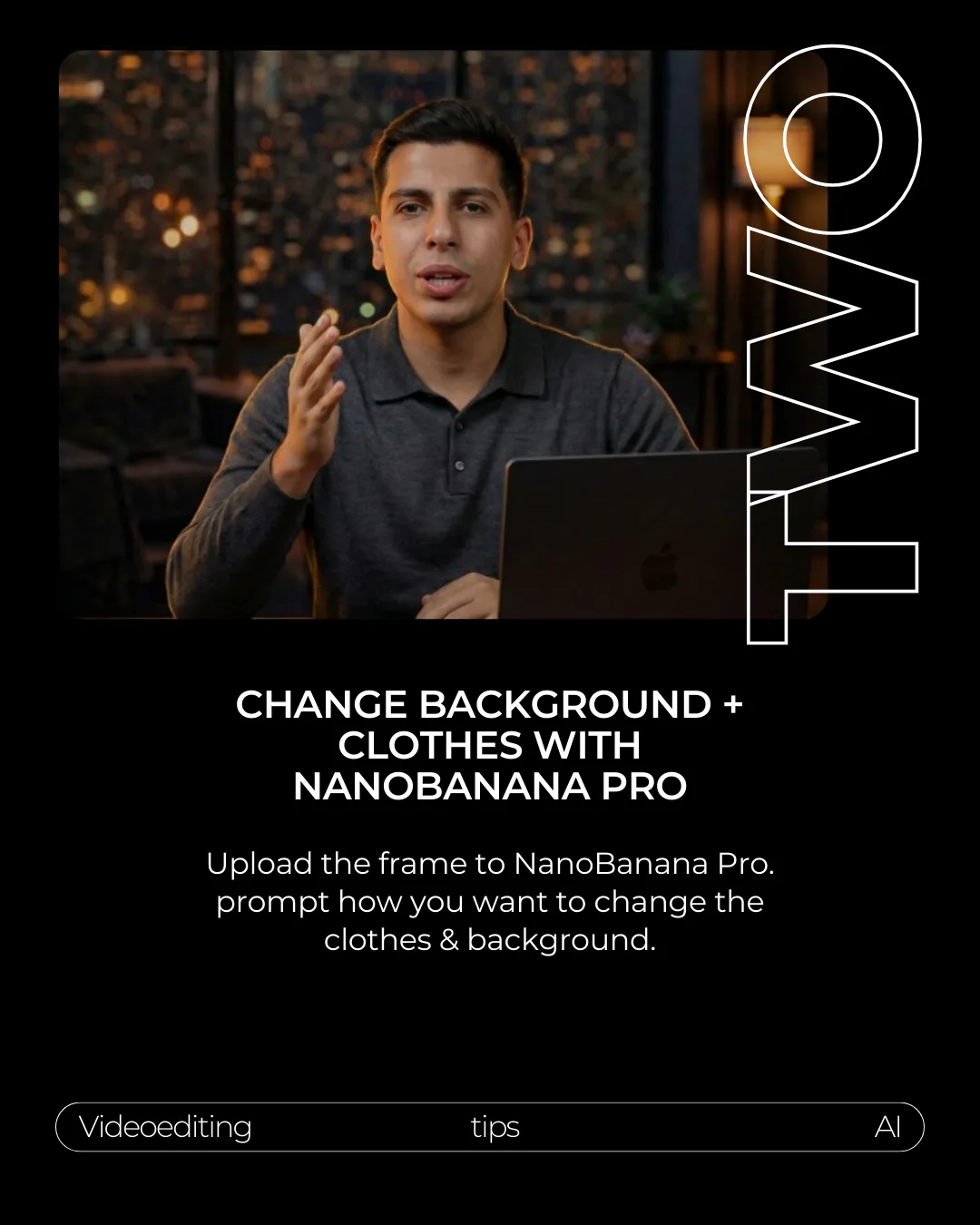
Transfer the original motion into the edited frame.
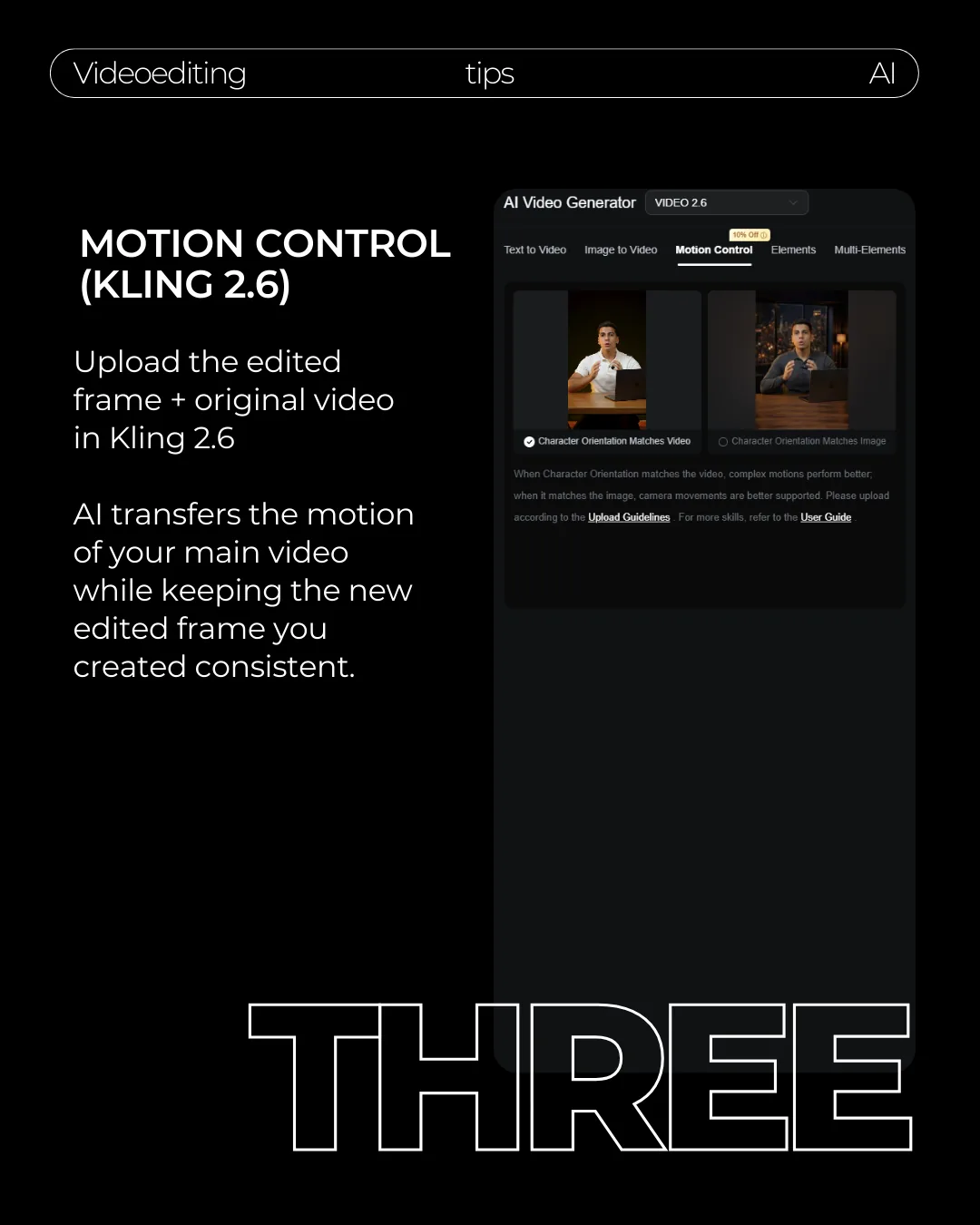
Open Kling 2.6 Motion Control and upload the original video plus the edited frame. The original video supplies the motion. The edited frame supplies the new look.
Match the character orientation to the video when you want the movement to stay close to the original clip.
Let AI transfer the motion, then use editing to clean the parts AI cannot preserve perfectly.
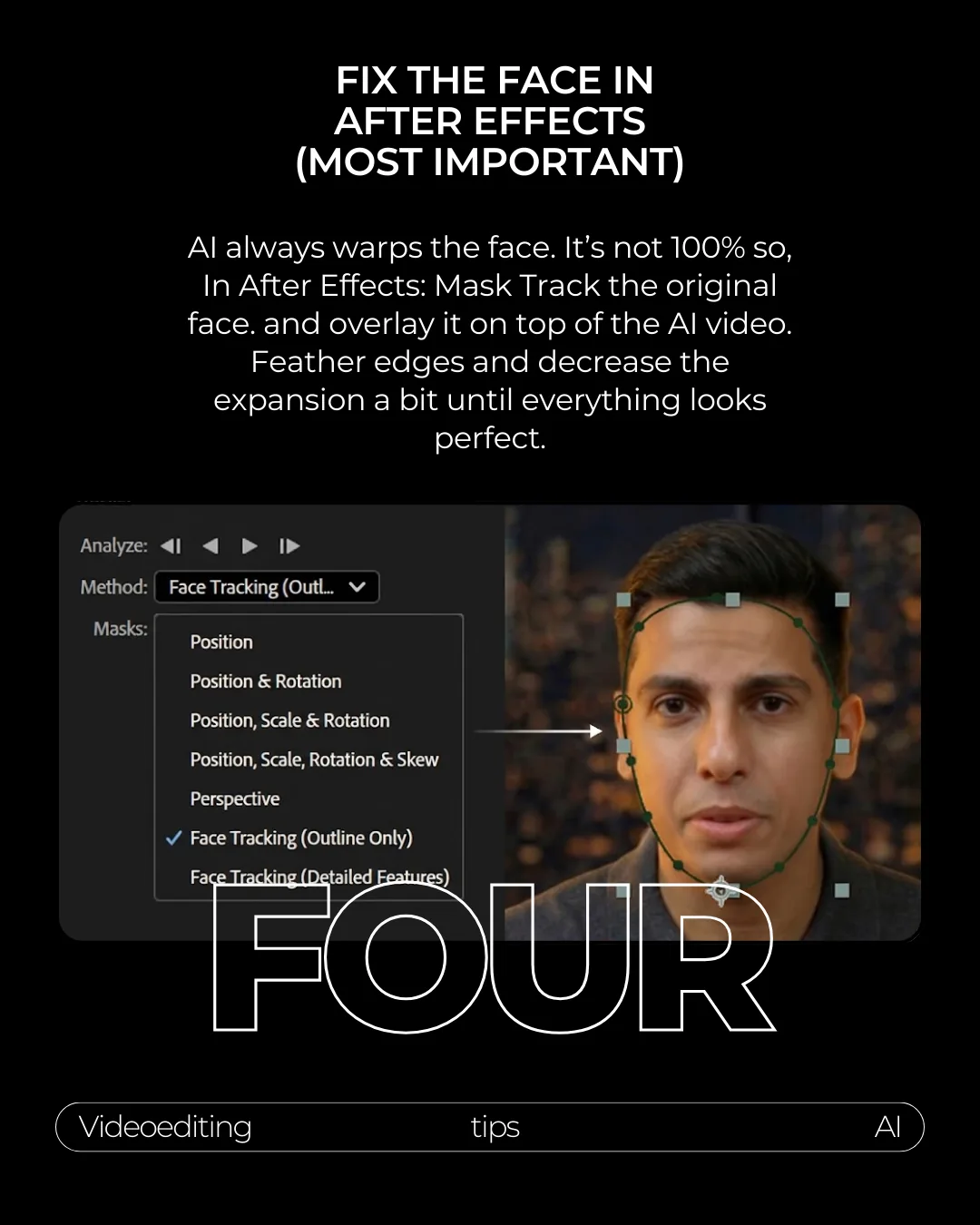
Fix the face in After Effects.
This is the most important step. AI often warps the face, especially around the mouth, eyes, and edges. Bring the AI clip into After Effects, place the original clip above it, and mask-track the original face.
Feather the edges and decrease the mask expansion until the original face sits naturally on top of the AI video.
Final export checklist.
This workflow is best for short clips where you need a new background and clothes without manually rotoscoping the whole shot.